
HUD Secure Systems Password Management Instructions
The Enterprise Identity, Credential, and Access Management Program Management Office (EICAM PMO) released updated, standardized step-by-step instructions to reset a forgotten password within HUD Secure Systems.
Instructions to Reset a Forgotten Password:
Access Password Settings by navigating to https://hudapps.hud.gov/hud/faq.cfm.
- External Users: Click the Forgotten Password for External Users button to start the reset flow for your account.
- Access Sign-On Screen
- Get to the Okta sign-on screen.
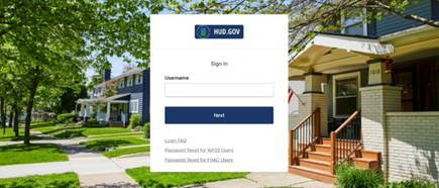
- Enter Username
- Enter your username
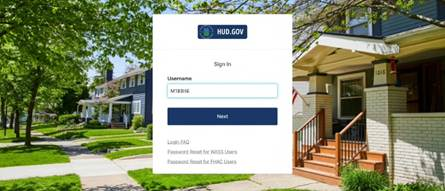
- Navigate to Password Entry Screen
- Arrive on the password entry screen
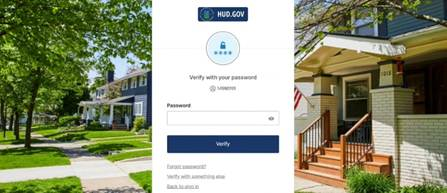
- Select Forgot Password
- Press the Forgot password button.
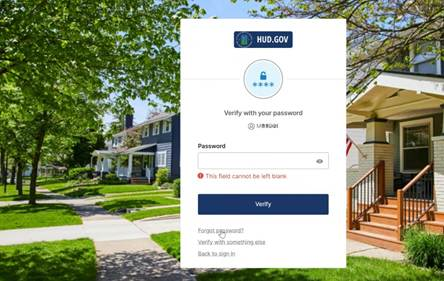
- MFA Verification Check
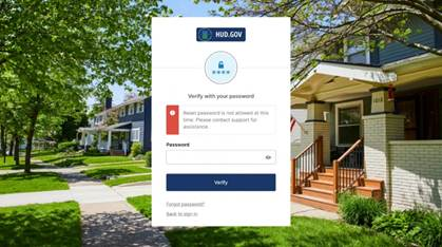
- If MFA is NOT enrolled, you will get the following screen and will need to contact support.
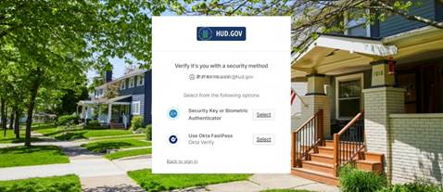
- If MFA is enrolled, you will get this screen. For Okta Verify users, select that option and see the following slide. If you utilize a security key, click that option and follow the corresponding flow.
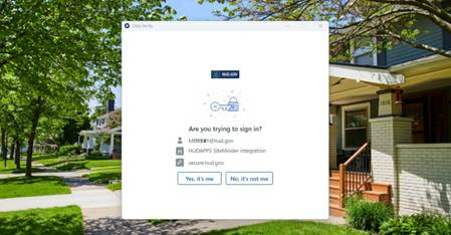
- Okta Verify Authentication
- If you use Okta Verify, you will see the following screen. Select the Yes, it’s me button.
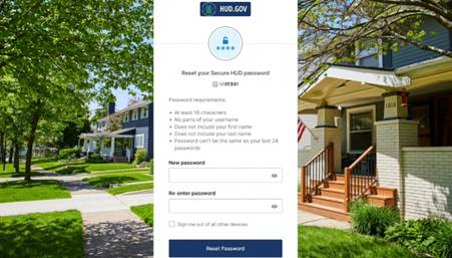
- Set New Password
- Get to the reset password page, enter the new password you’d like to use for login and press Reset Password.
Need Help?
If you experience any issues, please contact the HUD Multifamily Help Desk:
- Phone: 1-888-297-8689 (Option 5)
- RealEstateMGMT@hud.gov
Resources: